Skip to content
T5 for Mac — beta testers wanted

An AI assistant that finishes the job,
working right on your Mac.

Request access to T5 macOS 13 or later · Apple Silicon · Windows coming soon · App UI in Korean (English coming soon)

Total access requests 338

Tap a scene. Each one is a translated replay of a real task run in Korean.

New chat⌕ Find in chat
+Message T5

A translated replay of a real session run in Korean. “Haneul Flowers” is a fictional shop made for the demo.

About T5

AI got smart, yet we’re still hunting for files. It answers questions well, but finding and opening files, building tables and running the analysis was still up to us. And when we tried to learn automation tools, we got stuck at the install.

T5 is an assistant that does the work for you. Hand off a task like you would to a coworker, and it works directly with files, the browser, documents and apps to deliver the result. When it’s done, it sends you the file by messenger.

Task replay

Always on the move? Ask by messenger.

When a client asks for a quote, you no longer have to say ‘I’ll get it to you once I’m back at the office.’ Send a request by messenger from your phone, and T5 finds the files, figures out the template, and delivers the result you need.

0:00 / 0:36
What it does

Anything you do on a computer,
you can hand off to T5.

Like a person, T5 opens files to check them, looks things up on the web, and runs the apps it needs. Just ask the way you’d ask a coworker at the office.

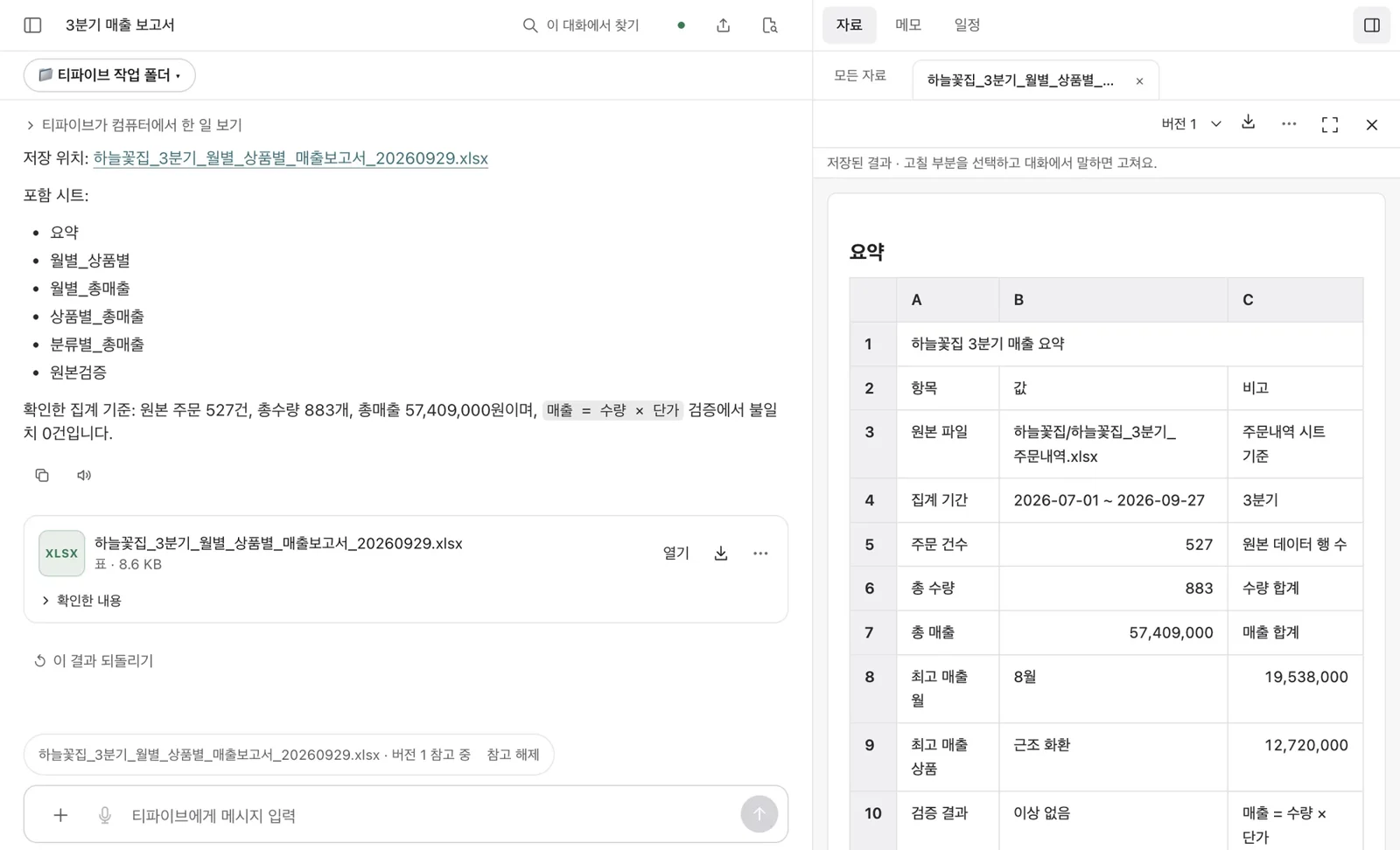
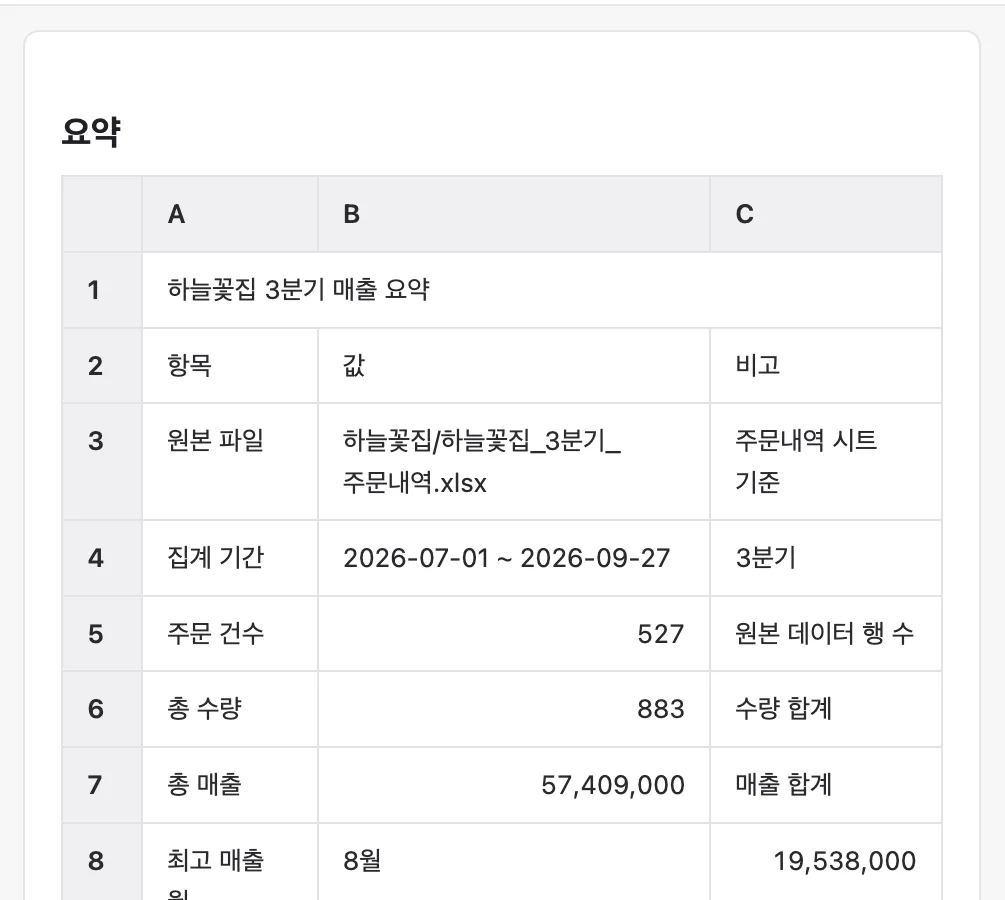
This month’s sales trendIt reads this month’s 527 orders and reports back with an Excel file of summary, monthly and per-product sales analysis. It also includes a review sheet so you can confirm the totals match the original.
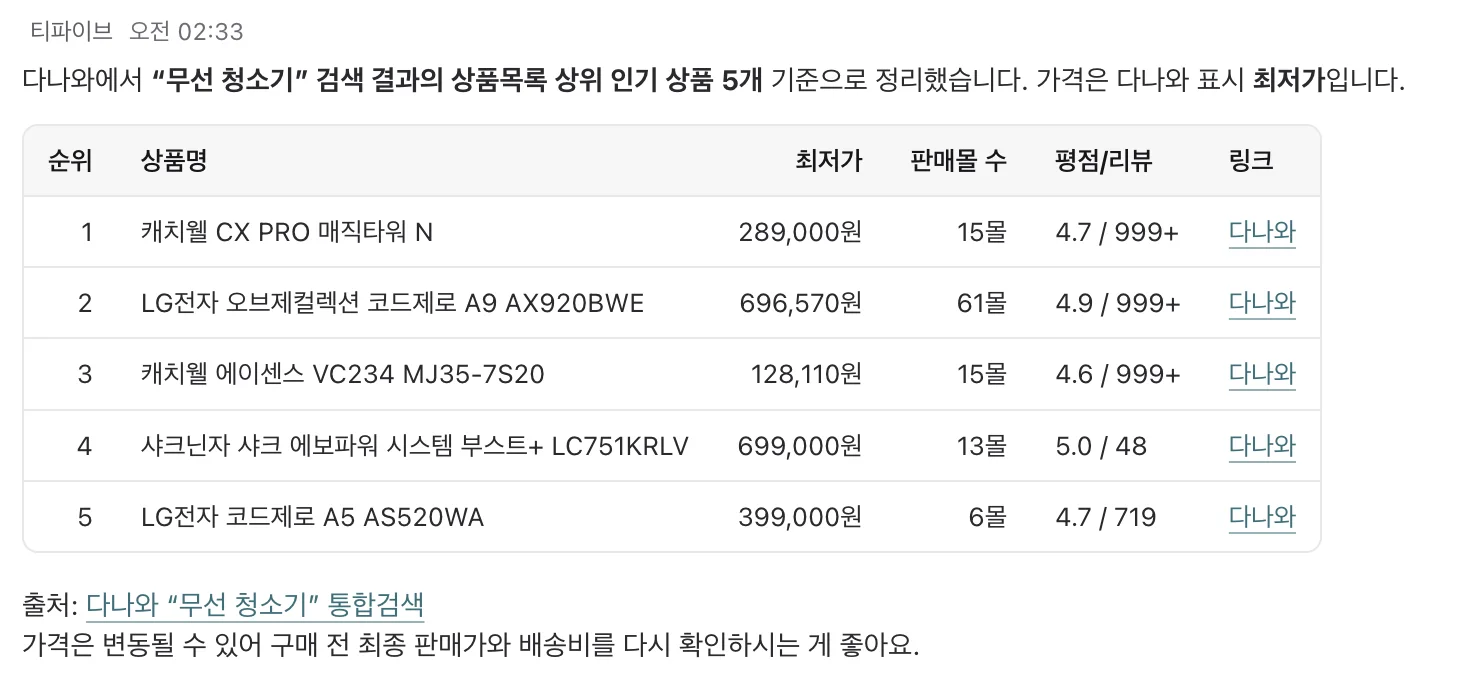
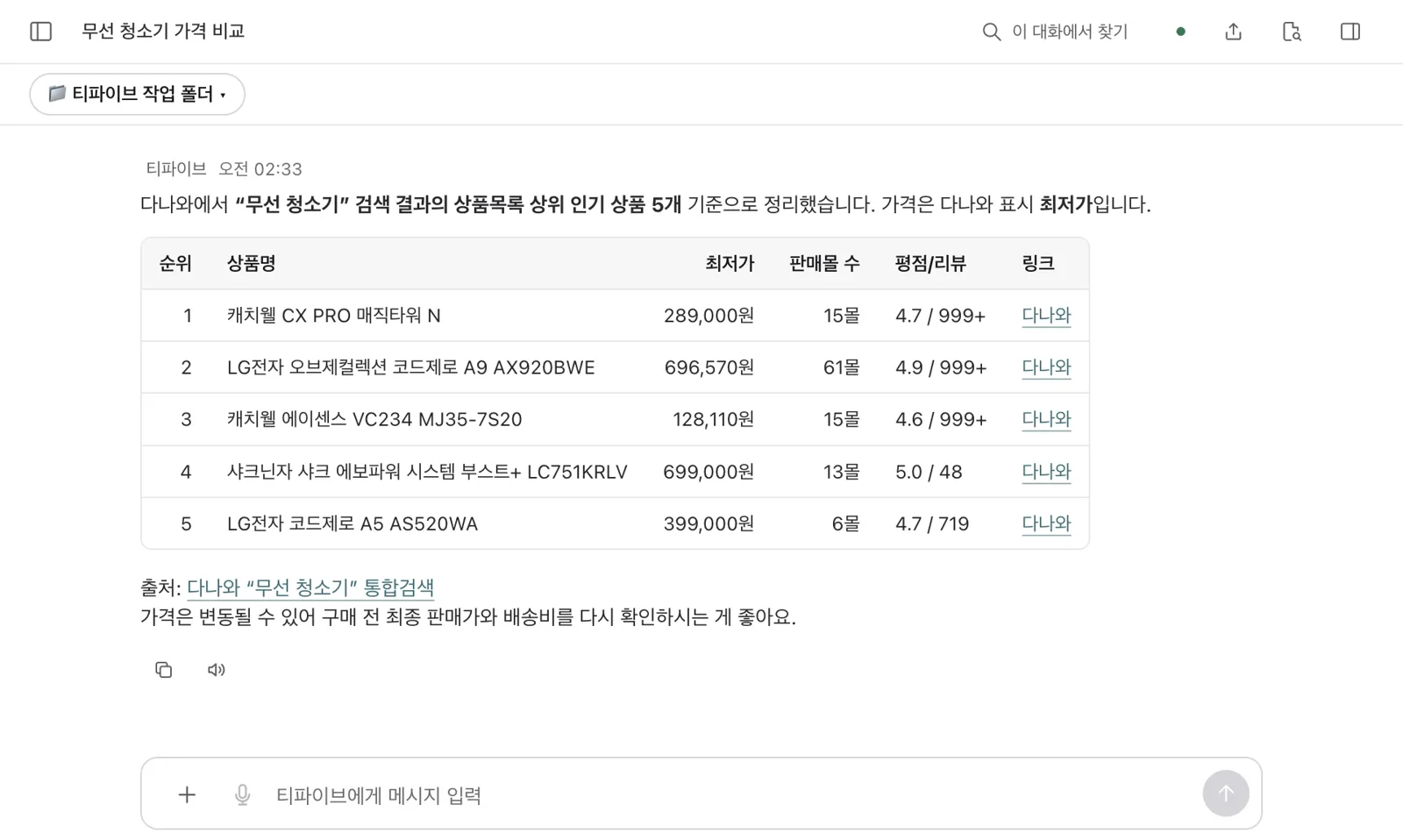
Search and compare on the webLess legwork clicking around the web. It collects the top 5 results by price, popularity and more, and gathers the lowest price, number of sellers, ratings and reviews into one report.

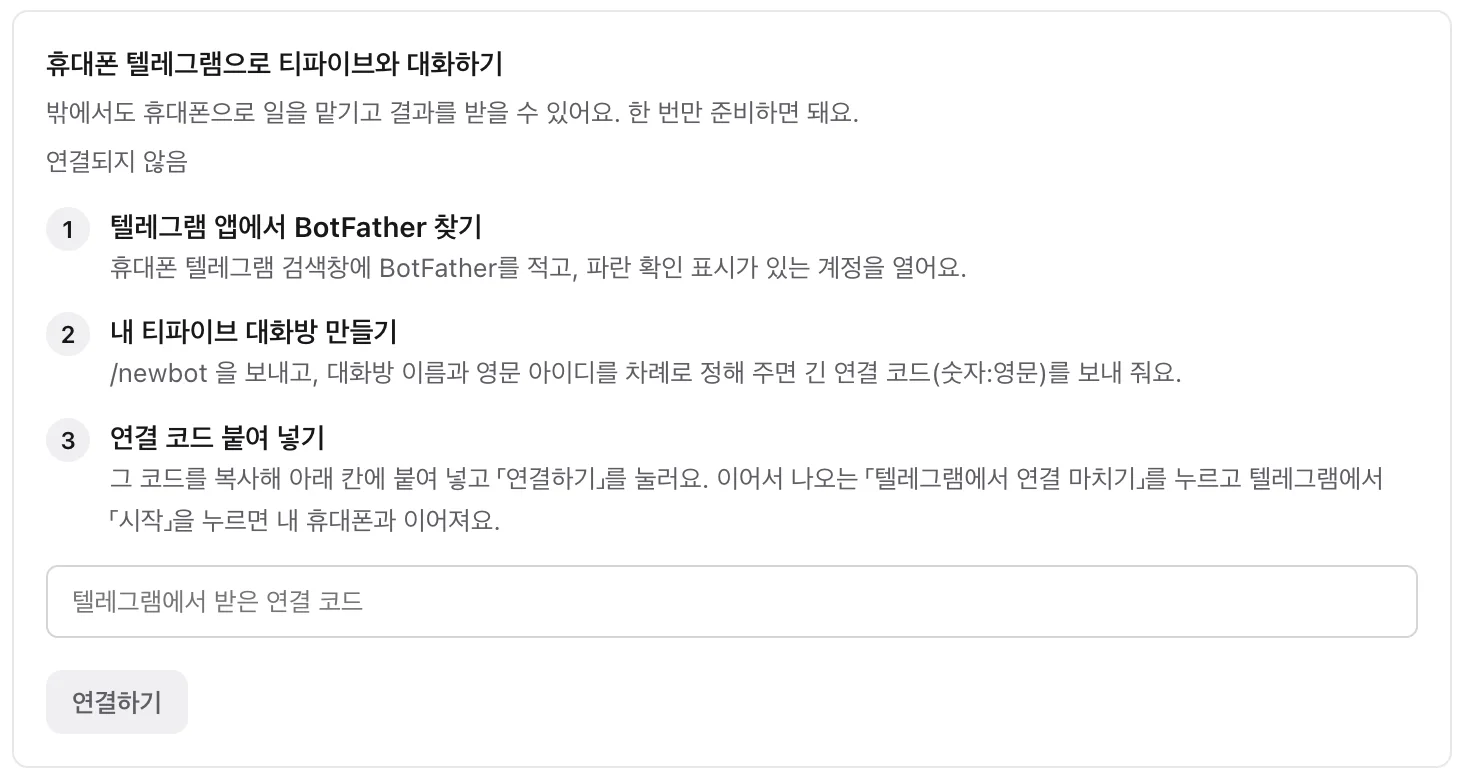
Work over messengerSet up a T5 chat in Telegram once, and you can request work as usual, even on the go. And of course, it makes the results and shares them with you.

It cuts unnecessary steps
and gets the work right.

Test request“Put the top 5 home fire extinguishers on Coupang, by most reviews, in a table”

An AI that only answers
  • Tells you how to search on Coupang
  • Explains where the sort-by-reviews button is
  • Makes you a table template

Searching, sorting and copying it all over is a hassle

Hand it to T5
  • Opens a new window in the Chrome you already use and searches Coupang
  • Sorts by most reviews and reads the top 5
  • Builds the table, review counts and all, then closes the window

You get just the result, nothing extra

We gave both the same 12 web tasks, side by side

T5
12
Dedicated AI browser
9

We tested tasks on popular Korean sites (Naver Mail, Shopping and Blog, Coupang, Danawa and Gov24), and T5 never once got tangled up along the way.

14/14File tasks reading and creating Excel files, documents and slide decks
0Times the user had to step in
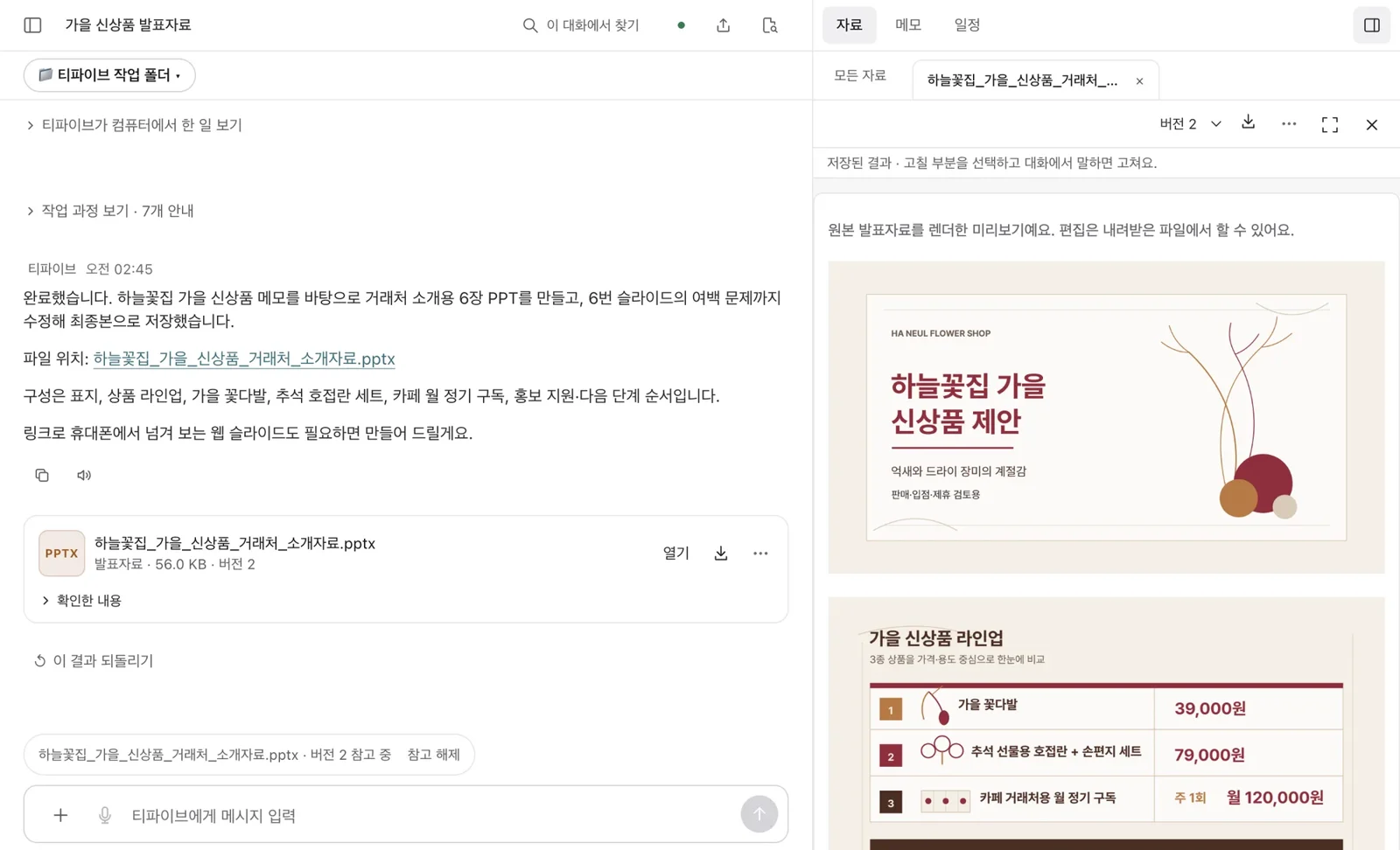
0Cases of overflowing text, tiny fonts or broken images
Sign-ins and passwords

Sign in just once,
and work on the web never gets stuck.

Summarizing Naver Mail, compiling blog admin stats, even publishing blog posts, all in one go. Saved sign-in details are used only on your computer and are never sent to the AI platform.

Banking, card, brokerage and payment sites get extra risk handling. T5 always stops and asks before any payment or transfer, and in Settings you can make these sites ones you sign in to yourself. Every site T5 visits is logged, so you can check anytime.

1PasswordBitwardenMac KeychainChrome connection

It finds, organizes, and turns it into a file.

Real situations where T5 decides which apps to open and in what order.

See all use cases →
📊 Reports from your files

“Use the Q3 order history in the Haneul Flowers folder to make a monthly and per-product sales report in Excel”

It reads 527 orders, builds a new Excel file with summary, monthly, per-product and per-category sheets, and opens it right alongside. It also adds a sheet that checks the totals against the original. The original stays untouched.

Time taken 3 minTotals off from the original None
T5 after building the Excel report. The included sheets and verification results are on the left, and the summary sheet is open on the right.
What users say

“Work got so much easier.”

“I handed off sorting our reviews and went grocery shopping. When I got back, the Excel file was waiting. It was sorted by most complaints, so I used it right away in our staff meeting.”
KKim ○○Korean restaurant owner
“In weeks when customer inquiries pile up, it gathers our Channel Talk inquiries and pulls out the frequently asked questions. Our reply prep time dropped sharply.”
CChoi ○○CS team lead, online store
“Once I invited it to our group chat, my team started pulling blog topics and grabbing files on their own. It’s reassuring that it never touches my personal files.”
YYoon ○○Team lead, marketing agency
“Every Monday morning, a sales summary shows up in Telegram. That used to be my job every Sunday night.”
LLee ○○Online store owner
“What I liked most is that it drafts official letters as Hangul files. Our field still uses HWP a lot.”
JJung ○○Private academy director
“It always asks before deleting, and it keeps a record of what it changed, so I feel at ease. Ask it to undo, and things go right back.”
HHan ○○Office manager, tax accounting firm
“I asked it to fix only the dates in a deck, and it really fixed only the dates. The design stayed intact, so now I trust it with my work.”
PPark ○○Education consultant
“I gave up partway through installing coding tools, but this took just one installer. You simply ask in plain words, so my staff picked it up fast.”
KKang ○○CEO, interior design company
“When I’m out on a job, I ask for a quote from my phone and get it as a PDF. I head back to the office a lot less.”
OOh ○○Owner, facilities contractor
Safeguards

It works on its own,
but when it should stop, it stops.

Looking things up, organizing and drafting go ahead without asking. But for high-risk actions, like spending money on a payment, deleting without a backup, or entering a new password or verification code, it always asks first.

High-risk actionsFor hard-to-undo actions like payments and transfers, including on banking, card and brokerage sites, it first shows what it’s about to do and only proceeds once you confirm.

Deleting without a backupFor deletions that can’t be undone, it shows what it will delete and asks first. Before overwriting anything, it keeps a separate copy of the original.

Log and undoEvery new file comes with “Undo this result.” Your original files stay as they are, and you can also just say “Undo what you just made.”

Telegram group chats

Invite T5 to your team’s group chat.Everyone on the team can hand it work.

Invite it and it’s readyInvite your T5 to a Telegram group you already use, and anyone on the team can hand it work just by chatting and get the result files back.
Set how it replies in each groupFor each group, choose whether it replies to every message, only when mentioned, or takes a break.
Your files aren’t exposedGroup requests are handled in a separate space with no access to your personal files. You decide for yourself which files get shared over messenger.
T5 2.6.3

A Mac app, so it’s even handier.

Work keeps going after you close the window, and you can call it up from anywhere.

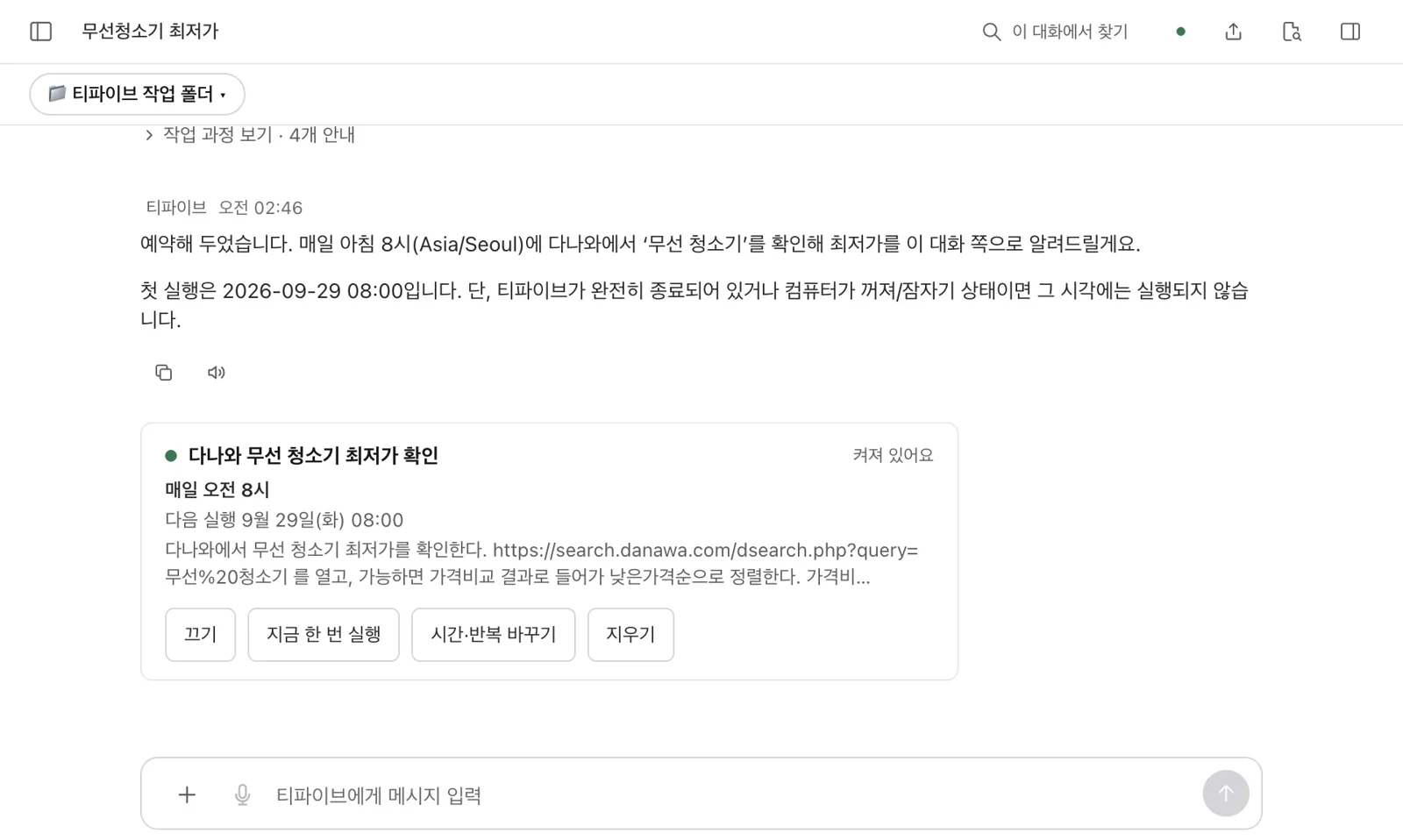
Always in the menu barYour tasks keep running after you close the window. It starts on its own when you log in and runs scheduled tasks on time.

Call it from anywhereEven while using another app, one shortcut lets you ask right away. Just turn it on in Settings.

Lets you know when it’s doneClick the notification to jump straight to that chat. You can see progress in the Dock, too.

Drag and drop filesDrop a file onto the T5 icon in the Dock and it’s attached to the current chat.

Calendar and notesConnects to Mac Calendar (iCloud, Google, Exchange). Just say “Set up a meeting next Tuesday at 3.”

From Hangul docs to videoIt can create Hangul (HWP) documents and e-books, and you can even hand it video cutting and joining.

Sensitive personal data

Your data stays on your computer.

T5 runs on your local computer. Your chats and files don’t leak out.

Runs on your computerChats, memory and the files it makes are all stored on your computer.

The AI model you wantConnect OpenAI, Claude, Gemini, Solar and other AI services, or use a model on your own computer.

Runs separatelyRequests from your team and outside tasks are handled in a space kept apart from your personal data.

Certified for MacThe app is built with a certificate for Mac. No need to switch to developer mode.

How it differs from coding tools.

T5 gives people who don’t code the same power as coding tools.

T5Coding tools for developers
Who it’s forAnyone who worksDevelopers
Getting startedOpen the installer, connect an AI modelInstall and configure in the terminal
Main workDocuments, research, file organizing, reportsWriting and editing code
Checking resultsReopens what it made and checks it directlyTests and code review
AppA Mac app with menu bar, notifications and DockInside a terminal or dev tool
On the goHand off work and get reports via TelegramMostly at the computer
Korean workflowsNaver, Channel Talk, Hangul docs, Korean writing—
Why we built it

Not everyone needs vibe coding. People doing everyday work need an everyday helper.

These days it feels like you have to learn to code just to use AI well, especially if you run a business. But isn’t what we really want simply to work easily and comfortably? For the work we already do to be a little less of a hassle.

So we built a helper that works alongside you, so you can get help from AI without knowing how to code. One that remembers you even as AI models evolve, and delivers results that fit your business and your style.

From why we built T5

Frequently asked questions

Can I use it with no coding knowledge at all?

Yes. It’s made for people who aren’t developers. You don’t need to know any settings or jargon. Just describe the result you want in everyday words.

How do I connect an AI model? What does it cost?

On first launch, you connect an AI on the “Getting ready” screen. Sign in with an AI account you already use, or enter an API key. You can use OpenAI, Claude, Gemini, Solar and other AI services, as well as models running on your own computer. Step-by-step instructions are in Get started.

You pay AI usage fees directly to the provider you connect, based on its pricing plan. Models on your own computer cost nothing to use.

Where do my files and chats go?

Chats, files and memory are stored on your Mac.

That said, for T5 to do the work, the content it needs is sent to the AI service you connected. When it searches the web, search terms go to the search service, and when it uses services you connected yourself, like Telegram or Notion, content may be sent to them too.

How do I connect Telegram?

It takes three steps in Settings → Messenger. Find BotFather in Telegram to create your T5 chat, paste in the connection code you get, then tap “Start” in Telegram. For an illustrated guide, see Get started.

Does closing the window stop the task?

No. Your tasks keep running after you close the window, and you can reopen it from the T5 icon in the menu bar. To shut it down completely, choose “Quit T5 completely” in the menu bar. If you try to quit mid-task, it asks you once more.

Does it work with sites that need a sign-in?

Yes. Connect the Chrome you already use, or pick a password vault like 1Password, Bitwarden or Mac Keychain, and it signs in to sites with those credentials. You can see the sites T5 visited in Settings → Activity log. Banking, card, brokerage and payment sites are treated separately as high-risk, so it always stops and asks before any payment or transfer. In Settings → Passwords, you can also set these sites so you sign in yourself.

How do I get new versions?

When a new version comes out, download the installer again from this page and install it.

What if it does something wrong?

T5 records what it ran and which files changed, and keeps the original before overwriting. If you don’t like the result, say “Undo that” or click Undo to put things back.

Does it work on Windows or Intel Macs?

For now, only Apple Silicon (M1 or later) Macs on macOS 13 or later are supported. A Windows version is in the works. Sign up with Get notified at launch and we’ll let you know when it’s out.

How do I get an invite code?

Click “Apply to be a T5 beta tester” and leave your name, email and phone number. We’ll tell you your place in line right away, and after review we’ll email you an invite code. Enter the code and you can download right away. If you got a code from someone already using T5, enter it under “I have a code.” If it’s urgent, let us know by email.

How do I uninstall it?

Open the T5 app in your Applications folder and you’ll find an uninstaller inside. Run it to remove the app along with its background items.

Don’t learn it. Hand it off.
You can start on your Mac today.

T5 for Mac

Install it, connect an AI model, and you can start handing off work right away.

  • Version2.6.3
  • RequirementsmacOS 13 or later · Apple Silicon (M1 or later)
  • File size약 361MB
  • Released2026-11-16
How to get an invite code
  1. Apply to the beta with your name, email and phone number. We’ll show your place in line right away.
  2. After review, we’ll email you an invite code.
  3. Enter the code and you can download right away.
See how to install and get started →
A Windows version is in the works.

Loading download info…