T5 2.6.3 · Get started

From installation to your first request,
just follow along.

Installation and setup done in 3 minutes! Then just ask the way you normally talk.

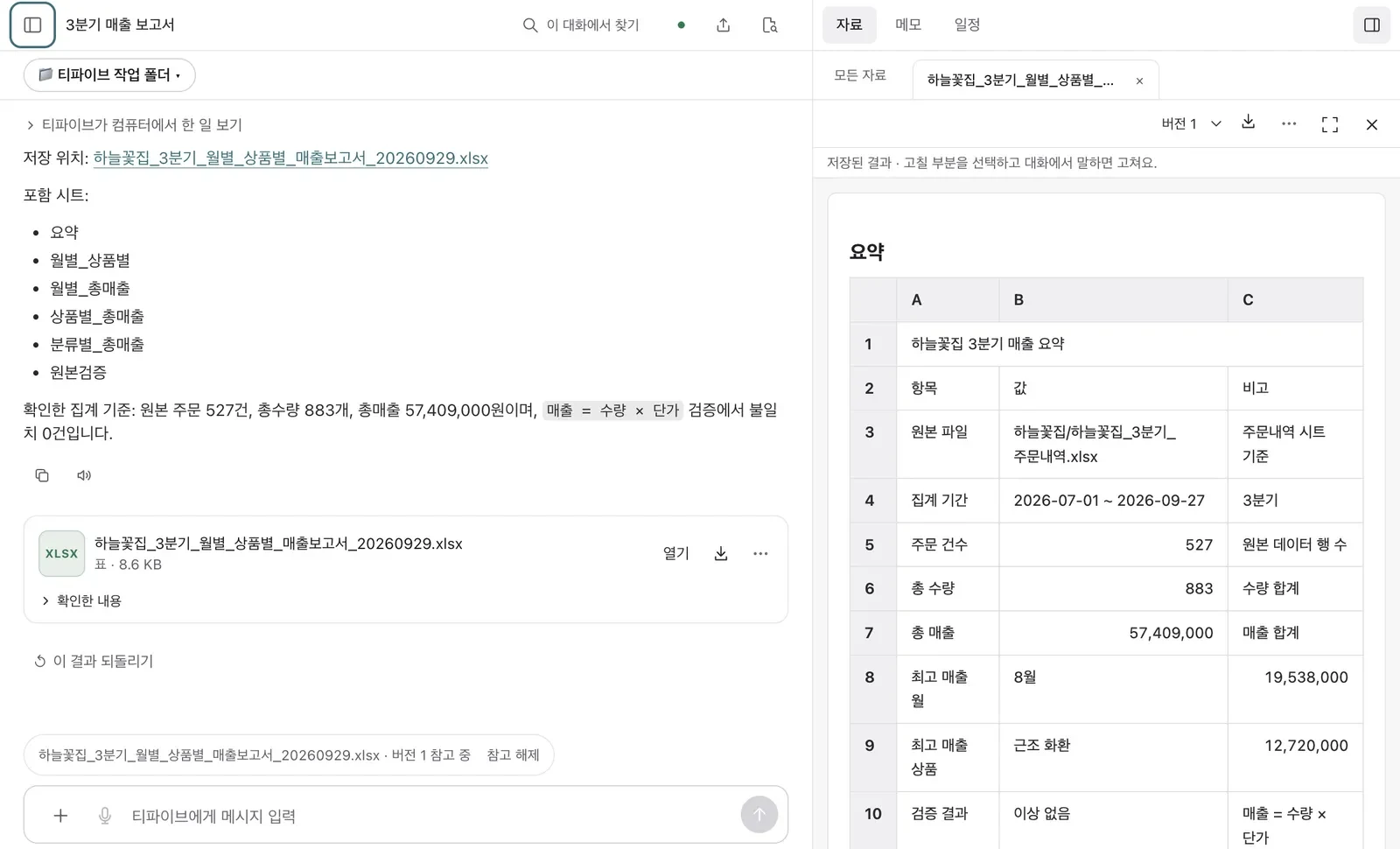
“Use the Q3 order history in the Haneul Flowers folder to make a sales report in Excel, by month and by product”

The T5 screen after it has made the Excel report

A task we actually handed off · Actual time taken 3 min · Waiting time is shortened in the video. “Haneul Flowers” is a fictional shop used for the demo.

Steps 1–3 · Only once, at the start

Install it, connect an AI,
and allow the permissions.

You only need to do all three once, the first time you open it.

1

Download and install

Open the installer and click “Continue” as prompted, and T5 goes into your Applications folder.

The installer is notarized by Apple, so you don’t need to change any security settings. Runs on Apple Silicon (M1 or later) Macs with macOS 13 or later.

Download for MacTakes you to the download guide
2

Connect the AI of your choice

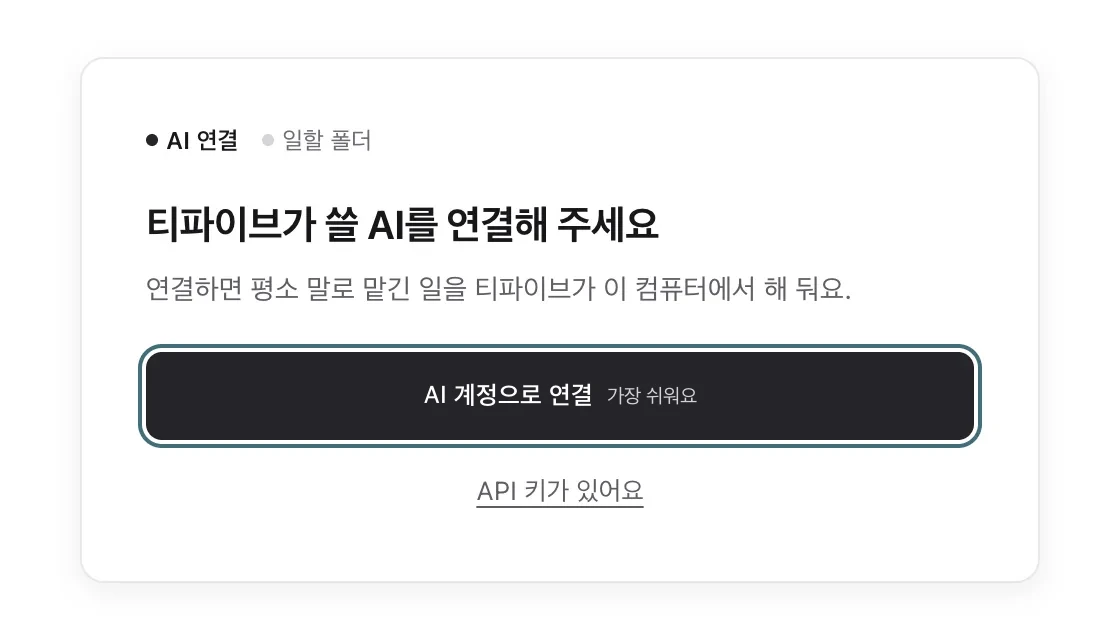
When you first open it, it asks two things: the AI T5 will use and the folder to work in. If you already have an AI account, click Connect with account (계정으로 연결), sign in in the window that opens, then click Allow, and you’re done.

If you have an API key from an AI company, you can also click “I have an API key” (API 키가 있어요) and enter it. You can change the working folder later for each conversation.

The first-run screen: “Connect the AI T5 will use,” with a Connect with AI account button and an I have an API key link.
3

Click “Allow” when your Mac asks for permission

Your Mac asks you first whenever an app wants to control other apps or use the microphone. It’s a Mac safeguard that T5 cannot click through on your behalf. Allow the four items below and your work won’t stop halfway.

System Settings › Privacy & Security › Accessibility

AccessibilityWhen · The first time you open T5
Why · To read the screen of the Chrome you normally use and click for you
Where to click · Open System Settings → turn on T5 in the list
Permission to use ChromeWhen · If Chrome is open the first time you open T5
Why · To open a new window in the Chrome you normally use and work there
Where to click · Allow
Full calendar accessWhen · When you click “View Mac Calendar” (Mac 캘린더 보기) in the Schedule (일정) tab
Why · To show your Mac Calendar events alongside, and add new events if you want
Where to click · Allow
MicrophoneWhen · The first time you use voice input
Why · To turn what you say into text
Where to click · Allow

When you first open it, it also asks once each whether it may use your Desktop, Documents and Downloads folders. Allow them all and it won’t ask again in the middle of a task. If you see a request for the camera or Bluetooth, you don’t need to allow it. T5 uses neither.

Step 4 · First request

Copy a first sentence
and paste it in as is.

There are no fixed commands. Write it the way you’d ask a person, and feel free to tweak it to fit your situation. If information is missing, it briefly asks for only what it really needs.

📊 FilesMake a dashboard from the files in this folder
📊 FilesSummarize monthly sales from the Excel file in my Downloads folder
🛒 WebFind the 5 Bluetooth keyboards with the most reviews on Naver Shopping and put them in a table, with links to the lowest prices
🏛️ WebTell me what I need to report a change of address on Government24 and how to apply online
✉️ MailSummarize my 3 most recent Naver Mail emails
🗂️ CreateMake a 10-slide presentation for a lecture
⏰ AutomateEvery Monday at 9, prepare a summary of last week’s sales
↩️ UndoUndo what you just made
Step 5 · Result screens

After you hand off a task,
you’ll see screens like these.

All of these are from tasks we actually handed off. For each one, we noted where the result opens and what to click to fix or undo it. “Haneul Flowers” is a fictional shop used for the demo.

⏳ While it works

While it works,
progress updates appear

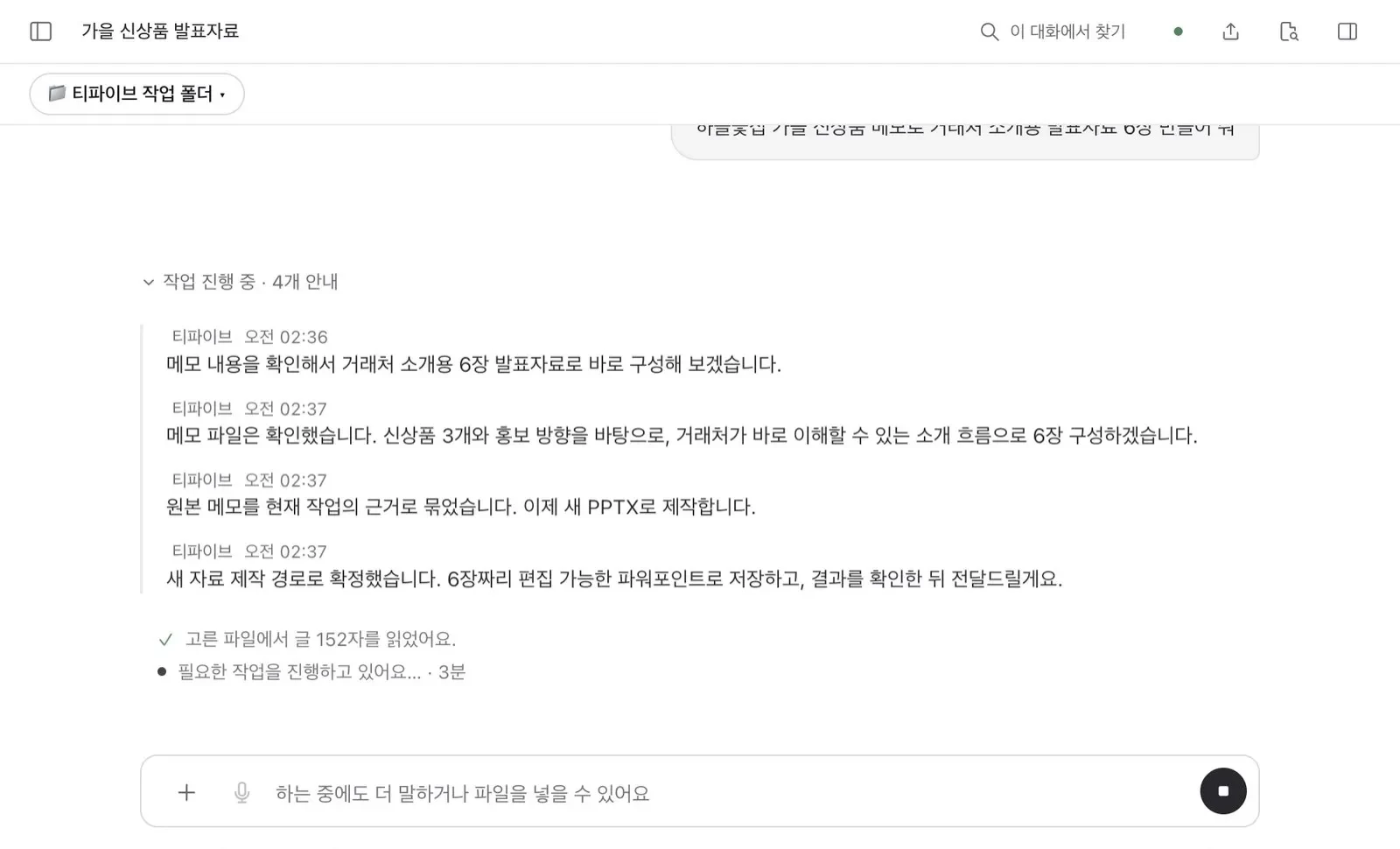
It tells you briefly what it’s doing right now, like “I’ve checked the memo file.” You can do other things while you wait, and you can change direction midway by saying more or adding files.

The T5 screen while a task is in progress, showing step-by-step progress updates with timestamps.
📊 Making files

Files it makes open
right in the side panel

Use the Q3 order history in the Haneul Flowers folder to make a sales report in Excel, by month and by product

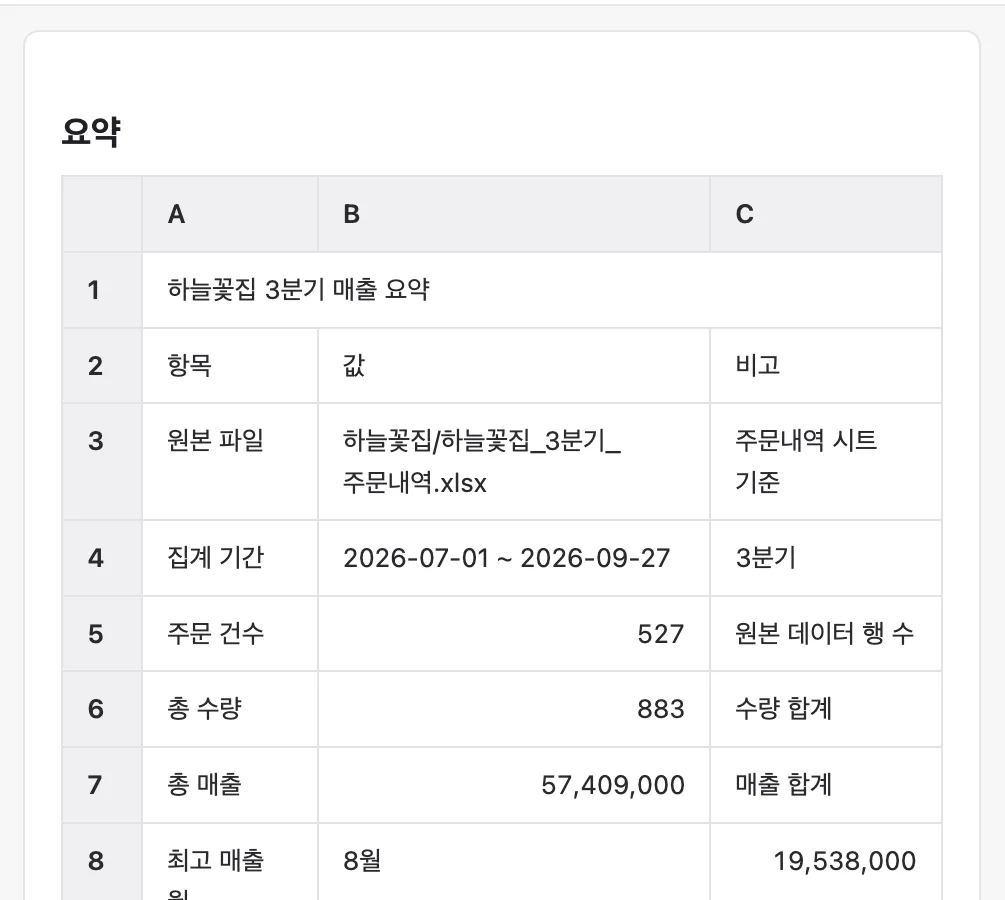
The new Excel file opens in the ‘Files’ (자료) panel on the right. Pick what to change and say so in the conversation, and it revises the file as a new version. If you don’t like it, click “Undo this result” (이 결과 되돌리기). Your original files are left as they are.

Time taken 3 minOrders read 527Totals that differ from the source None
The summary sheet of the newly made Excel report.
🗂️ Making presentations

When it’s done, it reviews
every slide again

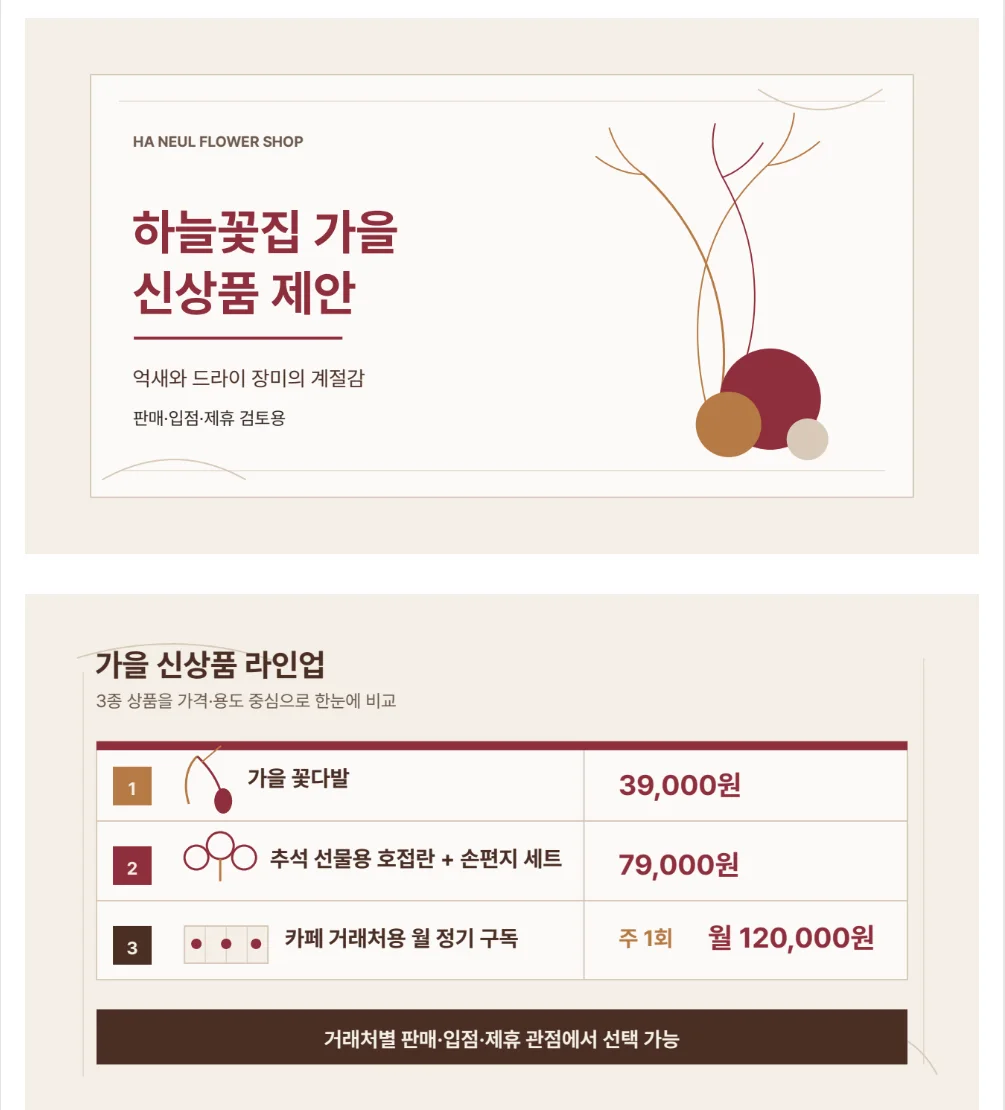
Use the Haneul Flowers fall new-arrivals memo to make a 6-slide presentation introducing them to our business partners

After making the PowerPoint, it renders every slide itself and fixes any overflowing text or awkward spacing on its own. In this scene, it fixed the margins on slide 6 and handed over version 2. You can also view earlier versions again in the panel.

Time taken 8 min 26 secSpots it fixed on its own 1
Presentation preview showing the cover slide and the new product lineup slide.
🛒 Searching the web

What it finds comes
with its sources

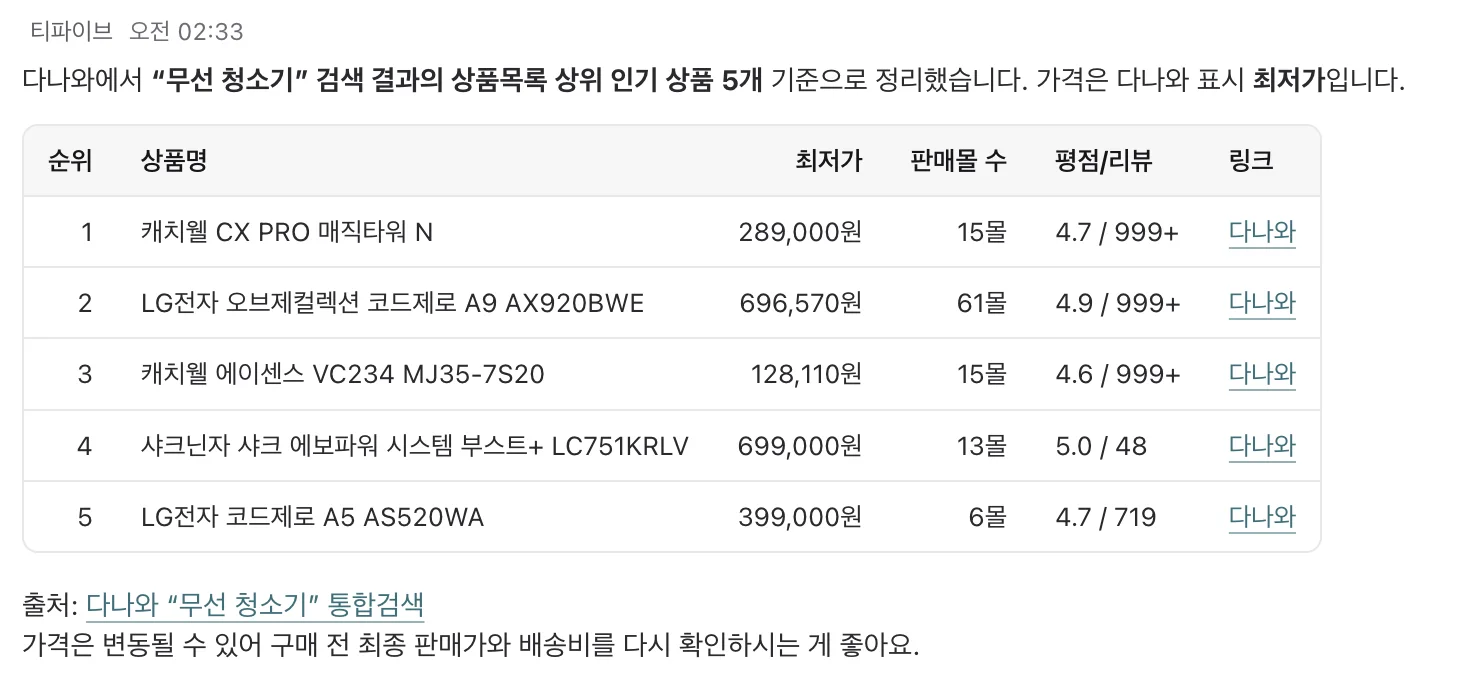
Put the prices of the 5 most popular cordless vacuums on Danawa into a comparison table

It opens a new window in the Chrome you normally use, searches, organizes the results into a table, then closes the window. The pages it looked at are kept as sources, and for information that changes, such as prices, it reminds you to check again before you buy.

Time taken 24 secSources Kept with results
A comparison table of the 5 most popular cordless vacuums, with sources.
⏰ Scheduling

Recurring tasks are managed
with schedule cards

Every morning at 8, check the lowest price for cordless vacuums on Danawa and let me know

Say something like “every day” or “every Monday” and a schedule is created. From the card, you can turn it off, run it once now, change the time, or delete it right away. Schedules run even after you close the window, but if your Mac is asleep or T5 is fully quit, they won’t run at that time.

Time taken 1 min 19 secNext run Daily 08:00
A schedule card for a lowest-price check every day at 8 a.m.
Step 6 · Connect more

When you need them,
connect more, one at a time.

At first, connecting just one AI is enough. You can do it yourself in Settings (설정), or just say something like “Connect Notion” in a conversation and T5 will set it up.

📱 Hand off tasks from your phone

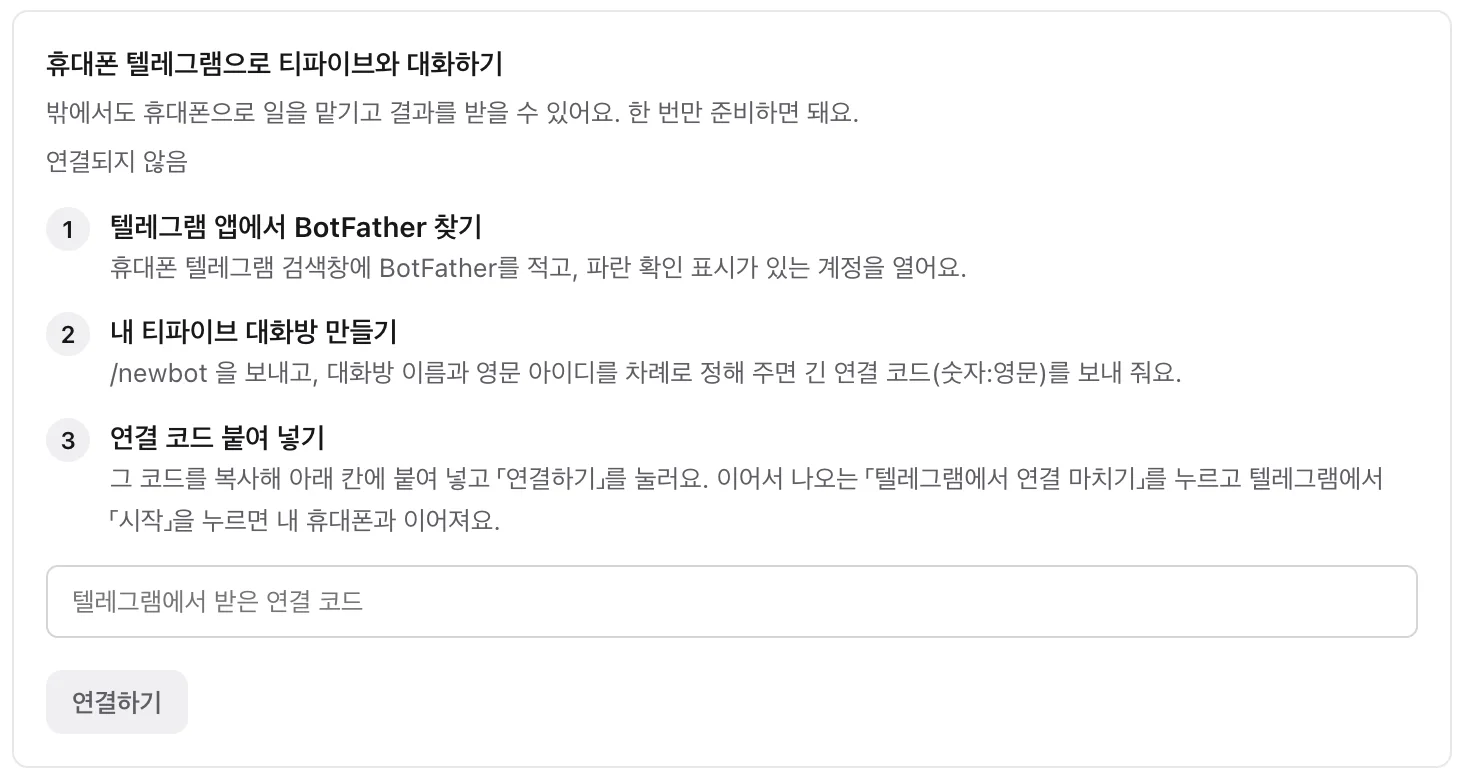
Set up your own T5 chat in Telegram once, and you can hand off tasks with a message even when you’re out, and get the result files on your phone.

  1. Find BotFather in Telegram and create a chat
  2. Paste the connection code you receive into Settings › Messenger (설정 › 메신저)
  3. Tap Start in Telegram
The Messenger screen in Settings, with the three steps for connecting Telegram and a field for the connection code.

🤖 Choose among several AIs

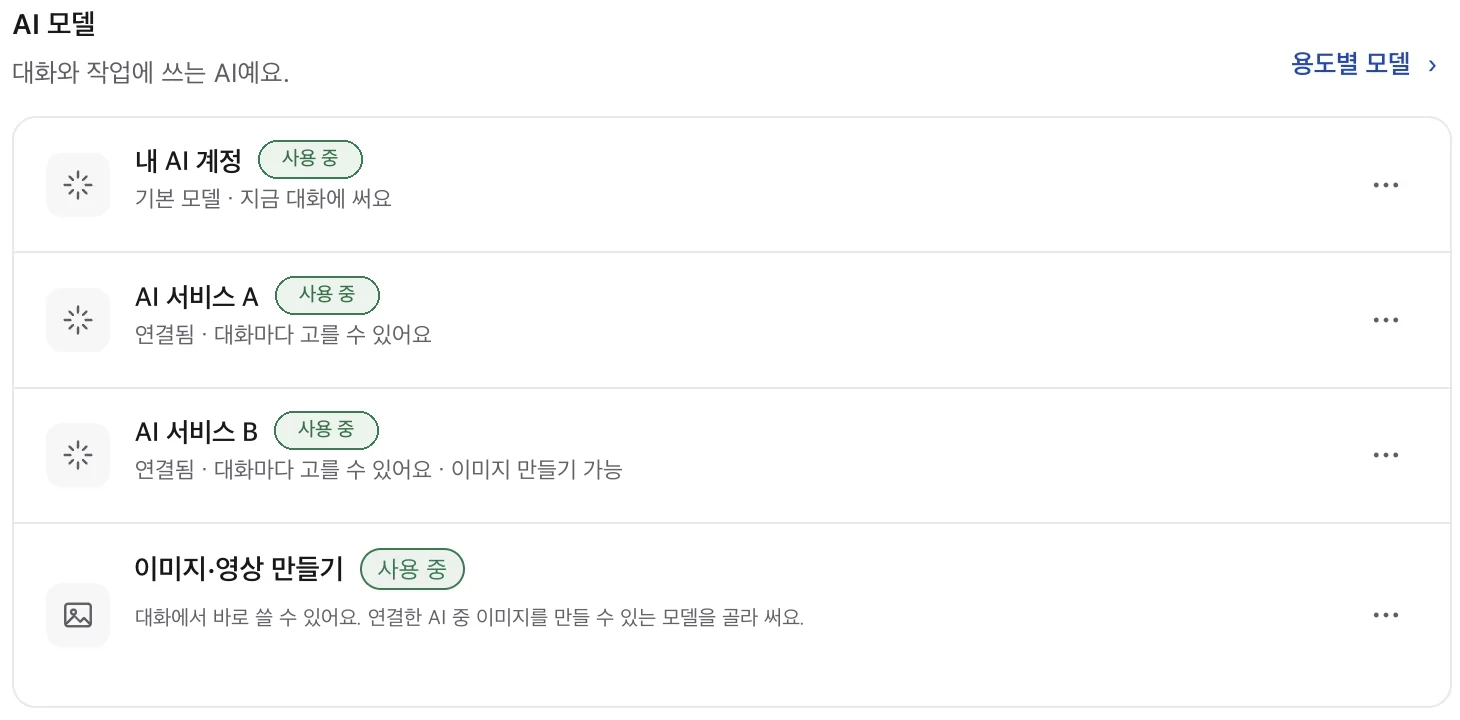
Connect more AIs and you can pick one below the chat input box, and even create images. If one service goes down, you can have the work continue with another AI.

The AI model list in Settings, with several connected AIs and items for creating images and videos.

🔑 Save your logins

Save the logins for sites you visit often, and from then on T5 signs in for you. It enters them only on the exact site address you saved, and your passwords never go to the AI.

The Passwords screen in Settings, with an Add login button.
Good to know

There are three things
it asks you about first.

Everything else, it carries through to the end without asking permission each time. Instead, it keeps a record of what it did and makes the results it creates undoable.

🔑 New passwords and verification codes

Please enter passwords or verification codes you haven’t saved yourself.

🗑️ Deleting without a backup

For files that can’t be recovered once deleted, it shows you what it will delete and asks first.

⚠️ High-risk actions

For things that are hard to undo, such as payments or money transfers, it shows you what it will do and goes ahead only after you confirm.

The AI never sees your passwords

Saved logins are entered by the app itself, and only on the exact site address you saved. You can also decide separately whether to use them on banking, card and payment sites.

Records stay on your Mac

Conversations, memories and the files it makes are kept on this computer. Only what’s needed to create an answer goes to the AI company you connected, and you can see how much was sent in Settings.

Results can be undone

Every newly made file comes with “Undo this result.” You can also just say “Undo what you just made.”

Stuck?
Start here

If you’re still stuck, just ask T5 directly. Ask something like “How do I connect Telegram?” or “Why didn’t that work?” and it answers by looking at your Mac’s current state.

How do I download it?

On the home page, click Apply as a beta tester and leave your name, email and phone number. After review, we’ll email you an invite code. Click the link in the email, or enter the code under “I have a code,” and the download page opens right away.

Which computers can I use it on?

The latest version of T5 (2.6.3) runs on Apple Silicon (M1 or later) Macs with macOS 13 or later. Versions for Intel Macs and Windows are in the works.

How much does AI usage cost?

T5 works with the AI you connect. If you connect with an account, it’s used within that account’s terms of use; if you connect with an API key, it’s billed at that company’s rates, and you pay the usage fees directly to that company. Models that run on your own Mac cost nothing to use.

I clicked “Don’t Allow” in the permission window.

In System Settings › Privacy & Security, open Accessibility, Automation, Calendars and Microphone, and turn on T5. If you’re not sure where to turn it on, ask T5, “Where do I turn on permissions?”

Does it work with sites that require signing in?

Sites you’re already signed in to in the Chrome you normally use work as they are. If you’re signed out, it opens a sign-in window for you, so you only need to sign in once. If you save the login in Settings › Passwords (설정 › 비밀번호), T5 signs in for you from then on.

What if I get a result I didn’t want?

Click the “Undo this result” attached to each result, or say “Undo what you just made.” It never touches your original files.

What happens to schedules if I close the window or turn off my Mac?

Even when you close the window, T5 stays on in the menu bar and schedules still run. If your Mac is asleep or T5 is fully quit, they don’t run; when it’s back on, each schedule either skips or runs once, as you set it.

Does my data leave my computer?

Conversations and files are kept on your Mac. Only what’s needed to create an answer goes to the AI company you connected. You can check what was sent, and how much, under “Recent model transfers” (최근 모델 전송) in Settings › Files & Storage (설정 › 자료와 보관). Whether it is retained or used for training follows that AI company’s policy.

It still isn’t solved

Send us a contact email telling us which screen you’re on and what isn’t working.

Hand one of today’s tasks
to your coworker.